Before you start
The core tools do not need camera or microphone access. Allow a permission only when you choose to capture, and check that recording is permitted at your location. Photos and voice notes are stored locally. After recording, remember to tap Save.
Watch the walkthrough
A 30-second local video using real app screenshots with step-by-step instructions. Camera capture requires a physical iPhone; this video does not show an actual camera capture or field audio collection. Available offline. It attempts muted autoplay, with pause controls; Reduced Motion preferences wait for manual playback.
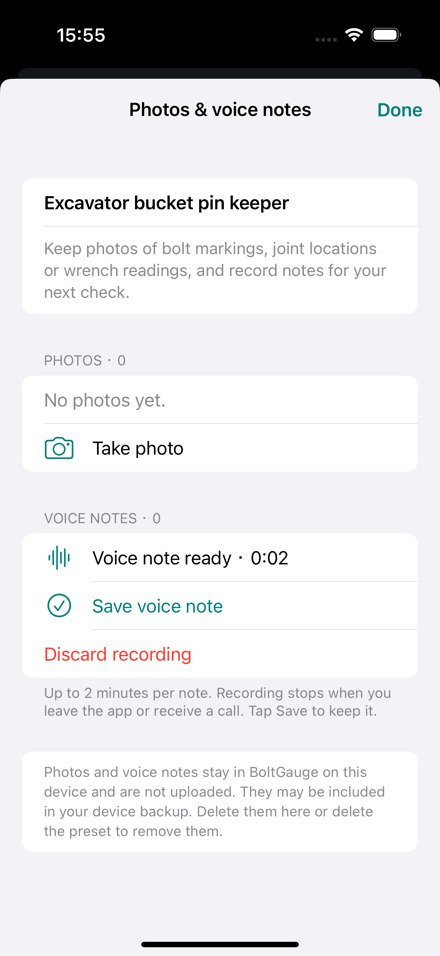
Choose parameters. Read the estimate.
- Open Torque. Choose metric or inch, bolt diameter and thread pitch.
- Check the strength grade and surface or lubrication condition. Read the torque window and socket suggestion.
- To change your primary unit or preload target, open Shop settings at the top right.
The result is an estimate, not a measured tightening result. Follow the equipment manufacturer’s specification, check units and use suitable calibrated tools.
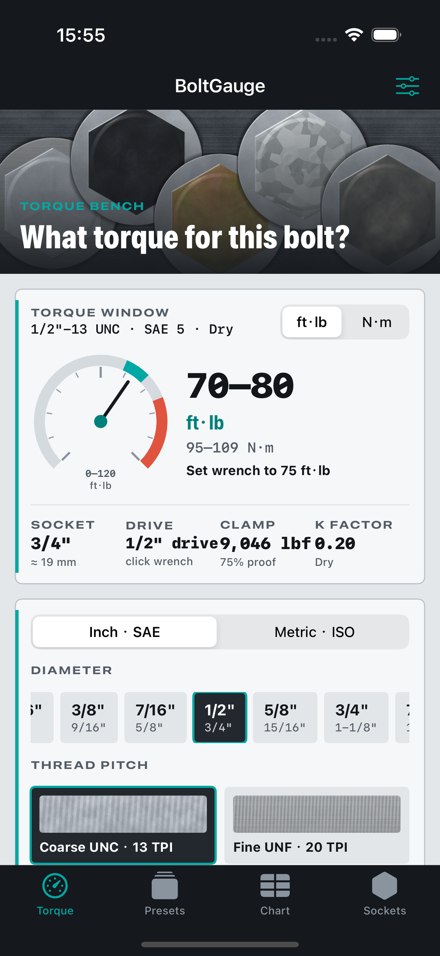
Save a preset. Open its field notes.
- On Torque, tap Save as fastener preset, enter a recognizable name and save.
- Switch to Presets and find the joint card.
- Tap Photos & voice notes to manage that preset’s attachments.
Bench loads the parameters back into the calculator. Log records a check time; it does not measure torque.
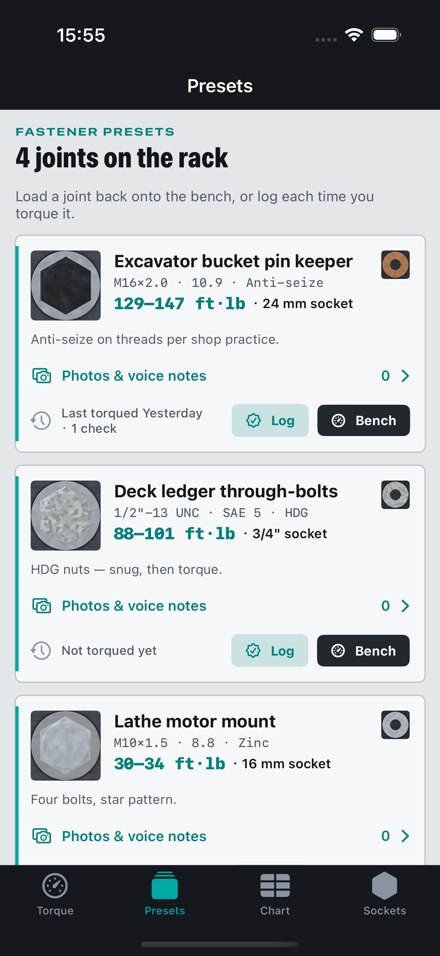
Take, import and review a joint photo.
- Tap Take photo. On first use, allow camera access if you want to take a photo.
- Frame the joint and confirm the captured image. Canceling does not save a photo.
- Or tap Choose from Library and select a photo of bolt markings, an installation location, or a torque reference screenshot. On first use, allow selected photos or full photo library access. Choose an image from the in-app grid. With selected-photo access, tap Manage Selected Photos to change which images are visible. Declining access leaves your other tools available.
- Tap the saved photo to view it larger. Use its trash button to delete it.
Photos are compressed and saved to that preset, not automatically added to the system Photos library. Keep unrelated people, private information and confidential details out of the frame. Use a physical iPhone for camera capture; the simulator does not provide this feature.
Imported images are saved as still JPEGs up to 1600 pixels on the longest side, without original location metadata. Deleting an imported attachment leaves the original in Photos. If an image cannot be imported, check your connection if it is stored in iCloud, or download it in Photos and try again.
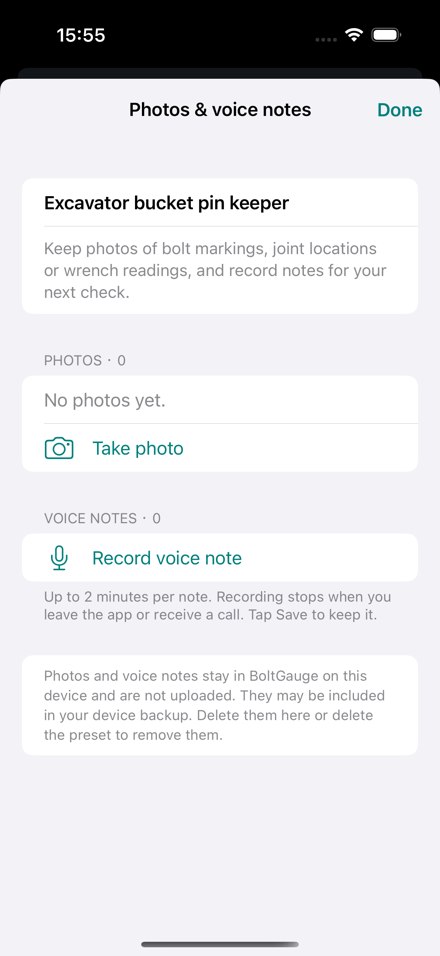
Record. Stop. Remember to save.
- Tap Record voice note. On first use, allow microphone access if you want to record.
- Describe the joint condition or next check. Each note is limited to 2 minutes.
- Tap Stop recording, then Save voice note to keep it, or Discard recording to remove the draft.
- Use the saved note’s play button to listen and tap again to stop. Its trash button deletes it.
Leaving the app or an interruption stops recording; it does not resume automatically. Check and save the draft when you return. Closing or terminating the app can lose unsaved recordings.
Check the chart and socket fit.
Use Chart to compare torque estimates by grade, pitch and surface condition. A change in calculation conditions changes the results; verify the selected conditions first.
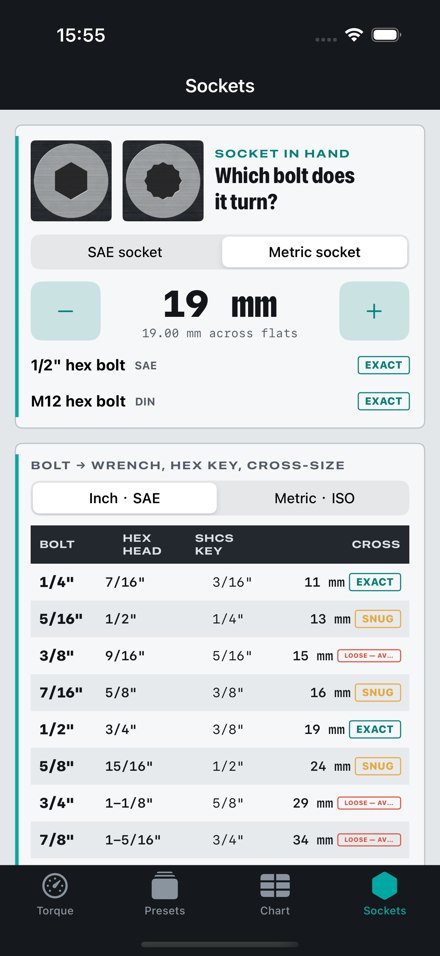
Sockets helps find possible bolt matches for a socket and provides cross-system size references. Always check actual dimensions and fit before applying force. Avoid loose sockets.
Manage records and permissions.
Check the deletion scope
- One attachment: tap its trash button on the attachment screen and confirm. Only that photo or voice note is removed.
- A whole preset: long-press the preset card, select Delete preset and confirm. Its attachments and check history are also removed.
- All presets: open Shop settings → Restore sample presets. This replaces all your presets with samples and deletes their associated media.
These actions have no in-app undo. App files may be included in your device backups; manage older backup copies separately.
Change photo, camera or microphone access
Find BoltGauge in iOS Settings and adjust the permissions you want. Permission alerts may also offer Open Settings. Calculations and lookups still work if you decline. Withdrawing access does not delete saved records.
Questions and support
Why does the app say no camera is available?
The simulator does not support camera capture in this app. On a physical iPhone, check the camera, system restrictions and camera permission. Other tools remain available.
Why is my recording missing after I stop?
Stopping does not save the recording. Tap Save voice note to attach it. A draft can be lost when discarded or when the app closes or is terminated.
Does playback need microphone permission?
No. The permission is for recording. If playback is silent, check the system volume and the selected audio output device.
What if an attachment cannot be saved or opened?
Check available storage and confirm that the preset still exists. If saving a recording fails, keep the draft screen open while trying again. We cannot remotely restore missing or deleted local files.
What if the video does not start automatically?
Tap Play walkthrough or use the video controls. Reduced Motion preferences, system policies or interruptions may pause it. Every step is also explained with text and screenshots below.
asayfracchia847@outlook.com
Include the app version and the steps that led to the issue. You do not need to send sensitive photos or recordings.